Material Report
Note: On our Youtube channel you will find a video on this topic |
||
|
|
In this video, we’ll guide you step by step through how to identify materials in your project, explore additional manufacturer information provided via the pCon.catalog portal, and export all relevant data on surfaces, quantities, and manufacturers using the Material Report in pCon.planner Pro. |
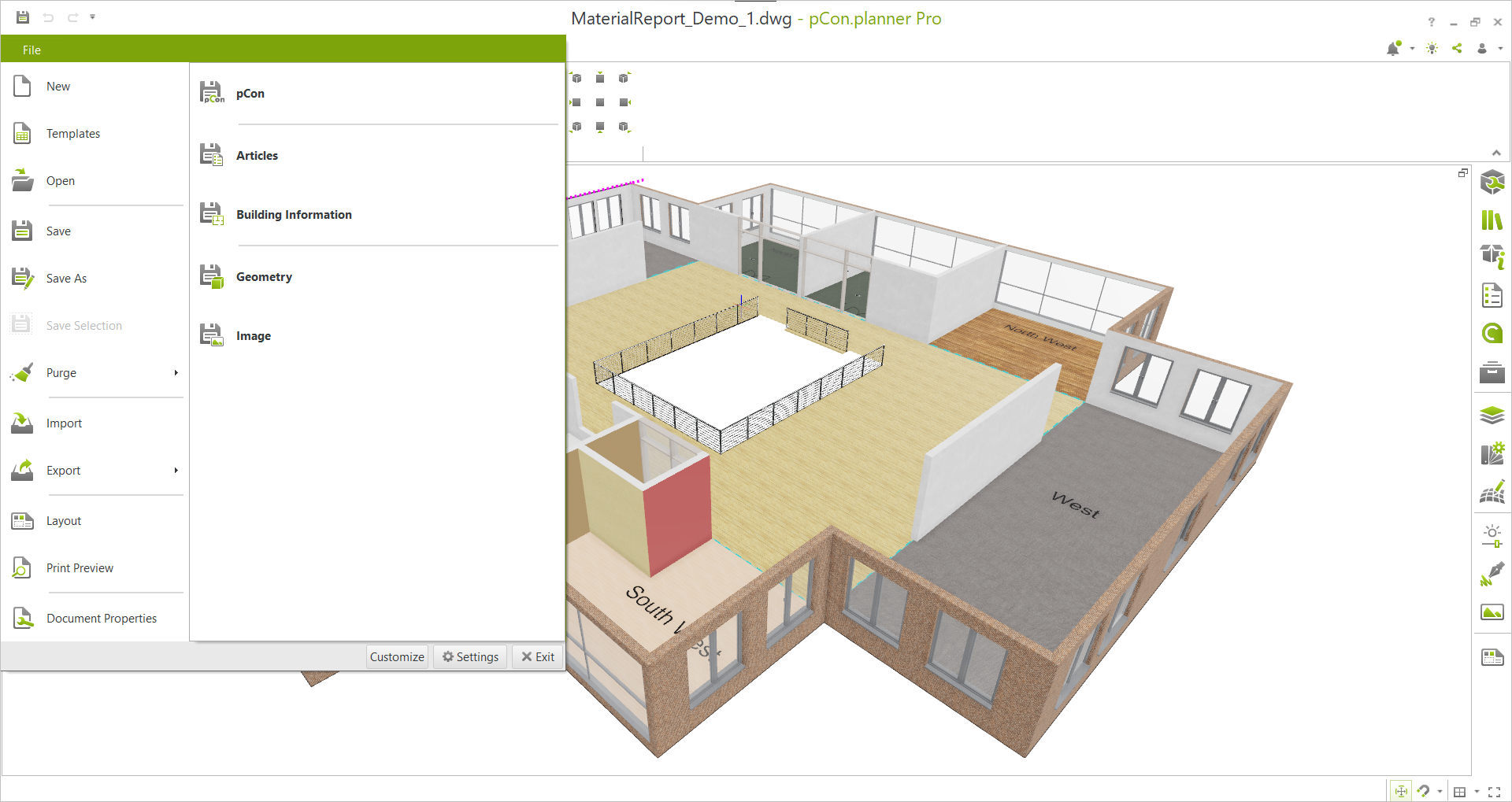
The Material Report can be found in the Building Information category, Export section, Application menu. It provides more insight for architects by giving material related information for selected rooms or spaces.
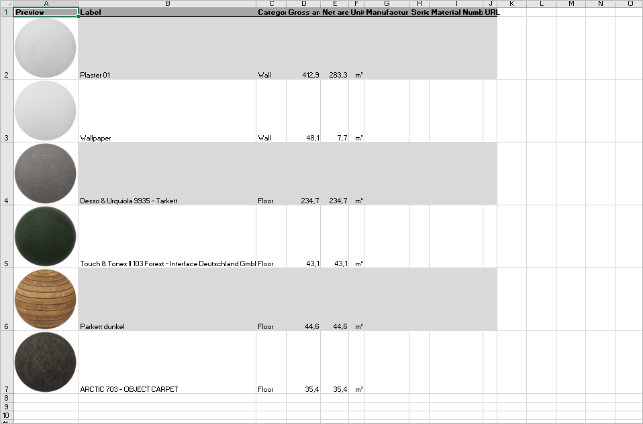
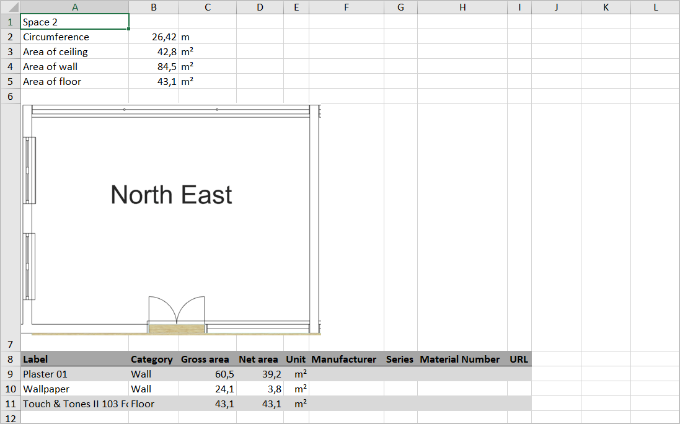
Floor plans of the selected areas are included, as well as global and area specific material/color lists and area measurements according to gross/net areas as well as circumferences. A wide range of architecture elements is taken into account, as well as user defined objects with own names.
Please note: the area measurements are approximated. Microsoft Excel itself is not needed for this export.
How to create a Material Report of your current drawing:
1.Open the Application menu and click Export.
2.Click the Building Information category.
3.In the opening Save as window, select Material Report as file type and enter a File name and select a file location.
4.Click Save.
5.In the drawing, mark all areas that you want to export by clicking with the left mouse button. While moving the mouse over a certain area, a red frame will indicate that it is ready to be selected. The status bar keeps you informed how may areas are currently selected.
6.After completing your selection, confirm by pressing ENTER. This will save your Material Report file to the previously defined location.

|
|