Attachments (pCon.planner Pro)
Note: Please note that repeatedly referencing DWGs with the same content as an attachment in your project (for example to add a typical contained in this attachment multiple times) might result in export issues. This includes missing articles in the article list as well as incomplete commercial export files (like PEC). To avoid this behavior, please make sure to use only attachments containing different articles for one project. |
|---|
Attachments allow you to set links to external DWG files. These files are loaded into and displayed in your main project.
Benefits of working with Attachments:
•Several people can work on different parts of a project independently
•Easy management of changes to parts of a complex project
•Easy merging process of the different parts following final changes
•Lower file sizes
•Accelerated loading and saving of complex files
Note: Attachments are inserted as locked containers. This means editing is disabled for their content. They can freely be placed in your drawing, but their content cannot be altered in the main project. Below you will get more information on working with attachments in your main project. More on editing the content of attachments can be found here. Aspects of the specific behavior of attachments is described here. |
|---|
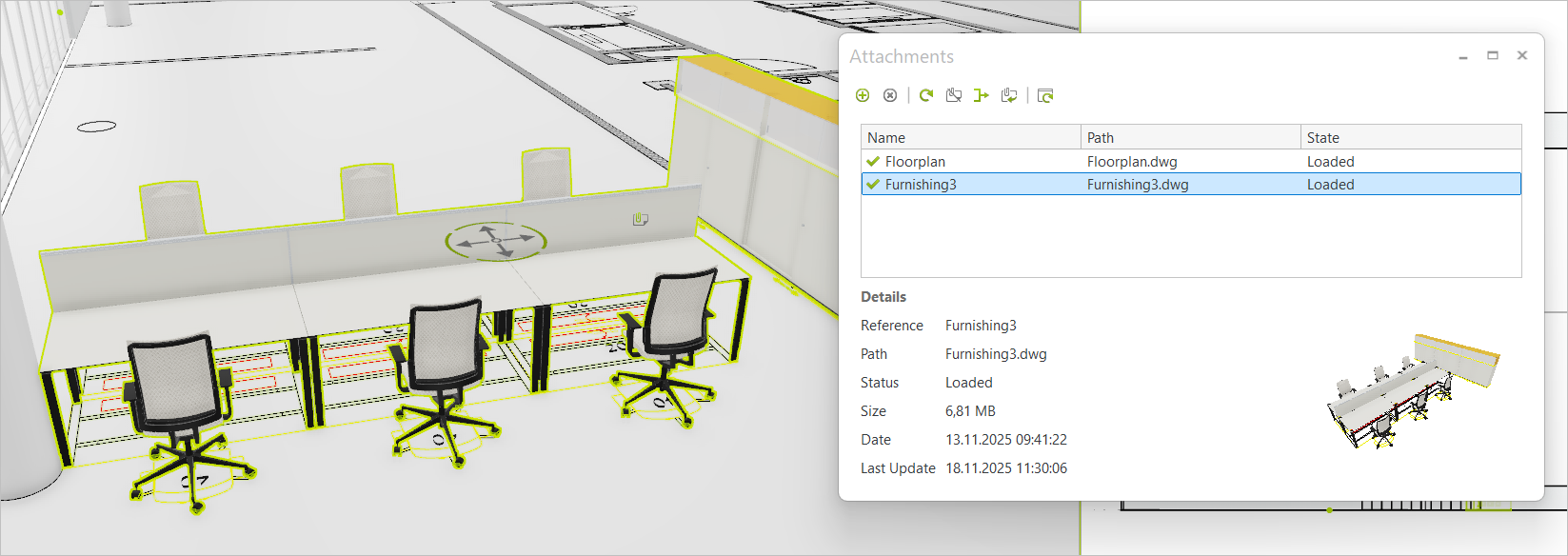
When hovering your cursor above an attachment, it is marked with a separate icon ( ) next to the cursor. If selected in the drawing, the complete attachment is highlighted (see image below).
A typical structure using attachments could look like this:
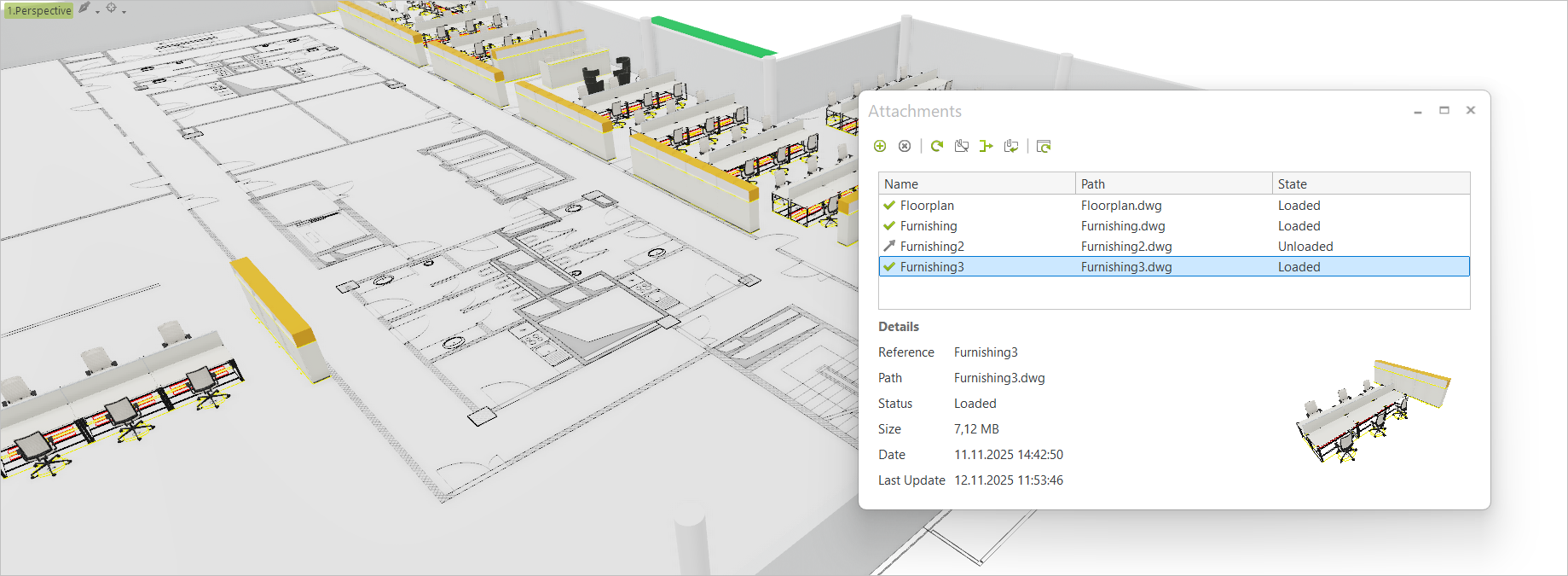
In this example, the project consists in an attachment containing the floor plan including walls and room elements. The additional attachments contain the furnishing for different areas of this floor plan.
Having a floor plan inserted into your drawing as an attachment marks the primary use case for the Attachment concept: when adjustments are made to the floor plan while you are already working on the furnishing for the project, it is easy to update your project in case of changes to the floor plan. No import process needed, just update the attachment containing the altered floor plan and continue your planning process.
With attachments, you also can include alternative furnishing variants in a project.
The main project is saved under the desired file name and can be linked to any number of attachments. Attachments are external DWG files that are linked to the main project by means of a file reference.
The Attachments dialog contains all features required to manage attachments in your current project. It is opened from the Objects group on the Edit tab. The Attachments dialog provides an overview of all attachments used in a project, including information on the selected file and a preview of its content.
The Attachments dialog is available in pCon.planner Pro. Loading and displaying attachments is, however, also possible in the other editions.

|
Attach a file reference: Select external DWG file to include into your current project as attachment. |
|
|
Delete |
Delete selected attachments: Delete one or multiple file references from the file list in the dialog. If an attachment is deleted, its content is removed from the drawing. This also has an effect on layers and materials. |
|
Update refreshes the content of the DWG files selected in the dialog. In addition, this operation loads selected attachments so that they are displayed in your project. |
|
|
Removes the selected attachments from the drawing but keeps the file reference for further use. |
|
|
Merges selected attachments into the drawing. After using Bind, attachments are a regular part of the drawing. The file reference is removed from the dialog (external DWG file is preserved, but not linked to the main project anymore). This action should only be used to finalize a project, e.g. as soon as all modifications on external files are completed. |
|
|
Change the file path for the selected attachment. Only one file can be selected at a time. Alternative way to call up the Change Path dialog: Double click on file name (Path column) in the dialog. |
|
|
Refresh List |
Refresh overview of attachments by checking their current state. This only has an effect on the list of file references in the dialog, not on the attachments themselves. |


Double click on the name of an attachment in the dialog (Name column): selects the attachment in the drawing.
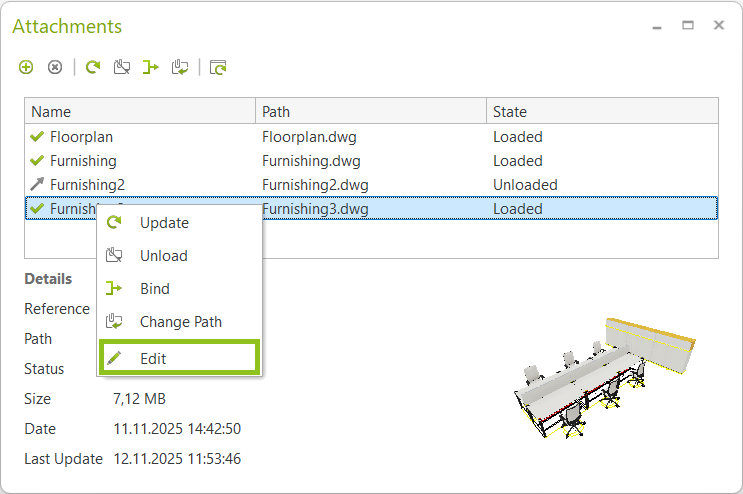
Right click on attachment in the dialog: Opens the context menu. The context menu gives you access to options from the dialog toolbar. The additional Edit button from the context menu opens the selected attachment in a separate instance of pCon.planner Pro. This way, the content of the attachment can be edited, articles can be updated or altered.
Using Drag&Drop with attachments:
•Drag attachment into drawing from the list in the dialog. Effect: Content from attachment file is imported as regular part of the drawing.
•Drag&Drop from local file system into the Attachments dialog: Add file as attachment to the current project. Content of the DWG can be freely placed in your project, file reference will be added to the list in the dialog.
•Drag&Drop from Attachments dialog to local file system: Copy file into a specific folder in your file system.
Status Icons in the Attachment Dialog
The icons to the left of each attachment provide information on the current status of the attachments:

|
Loaded |
Attachment is displayed as part of the drawing. |
|
Unloaded |
Attachment is part of the list of file references, but not displayed as part of the drawing. |
|
Content changed |
The content of the attachment file has externally been changed while the main project is still opened. Action needed: Update your attachment to include the changes into the main project. |
|
Path changed |
The referenced file has been moved to a different location. Action needed: Select the attachment and use the Change Path option from the dialog to set the correct path. |


The information area in the lower part of the dialog contains additional information on the attachment that is currently selected in the attachments list. This includes the time and date of the last external update made on an attachment. If there were external changes to an attachment in the list, using Refresh List will lead to the Last Update line being shown in bolt to put awareness on the recent modifications.
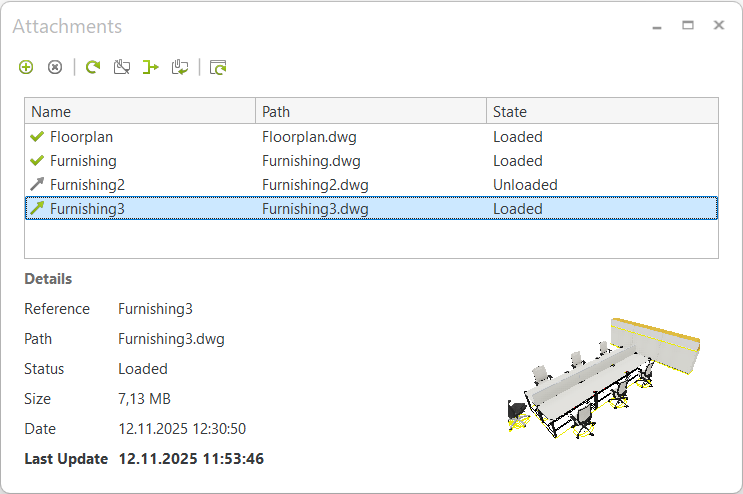
To add a new attachment, you have to work from your project DWG.
1.Switch to the Edit tab and open the Attachments dialog (Objects group).
2.Click the plus icon ( ).
).
3.Browse your file system and select the DWG file you want to add to your project as an attachment.
4.Press Open.
The content from the file will then be attached to your cursor. Place it in your drawing as desired.
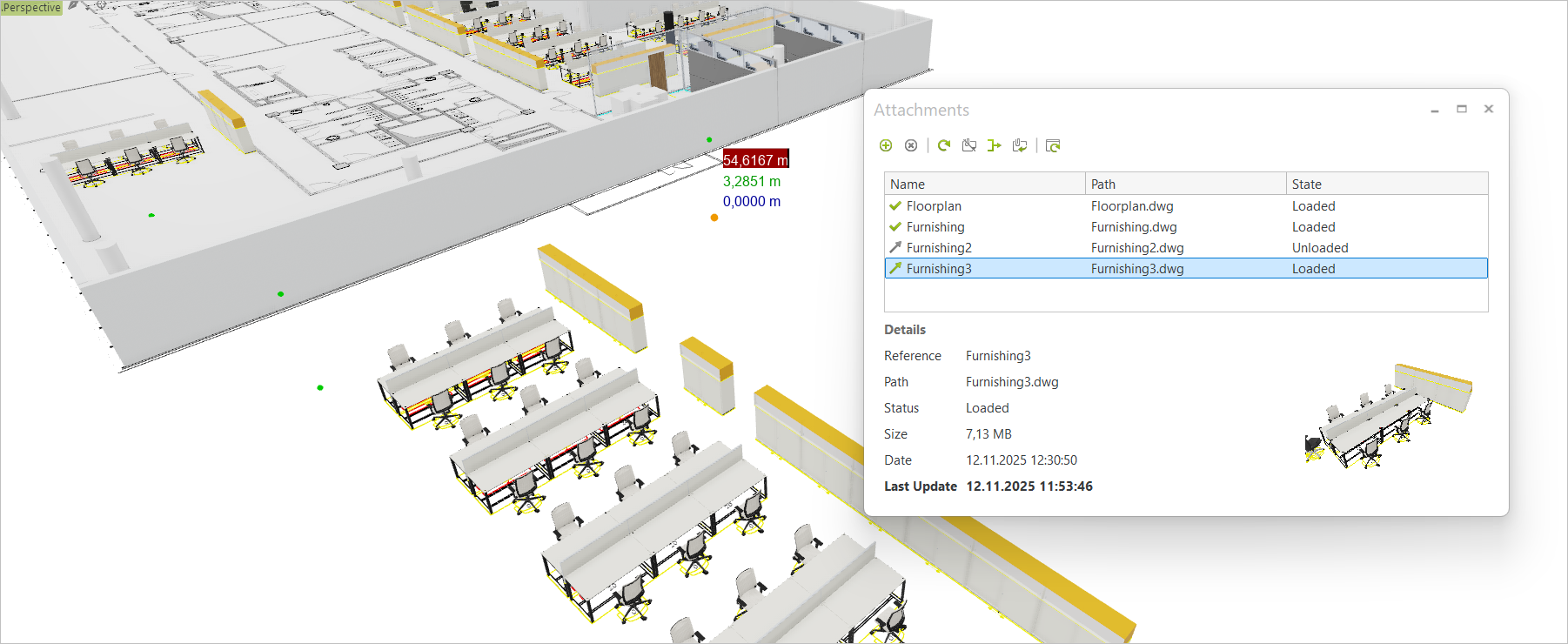
Updating attachments is important for two reasons:
1.Since it is possible that the content of an attachment is changed externally while you are actively working on the main project, you would want to update to get access to the latest modifications.
2.If an attachment has been unloaded (see next chapter) but you want its content to be displayed in the drawing again, the Update option loads the attachment into the plan again, placing it at the position it originally had.
Note: When you are loading a file with its attachments, always the newest versions of your attachments are loaded. External changes to the content of an attachment file during a pCon.planner session lead to a change of the status icon in the Attachments dialog. The green arrow ( |
|---|
To update:
1.Select the attachment in the reference list in the Attachments dialog.
2.Click Update ( ).
).
Select an attachment from the list in the Attachments dialog and click Unload to remove the attachments content from the drawing. The file reference will remain in the list for further use.
To unload an attachment:
1.Select the attachment in the reference list in the Attachments dialog.
2.Click Unload ( ).
).
If you want to display the content of the attached DWG in your drawing again, select the reference in the list and click Update.
The Bind feature converts the content of an attachment into a regular part of your project. Using bind will convert the attachment into a regular group while removing the file reference from the list in the Attachments dialog.
Note: We recommend using this option as one of the final steps of your planning process, only using it after all modifications to the external DWG file are made. |
|---|
To bind an attachment into your project, proceed as follows:
1.Select the attachment in the reference list in the Attachments dialog.
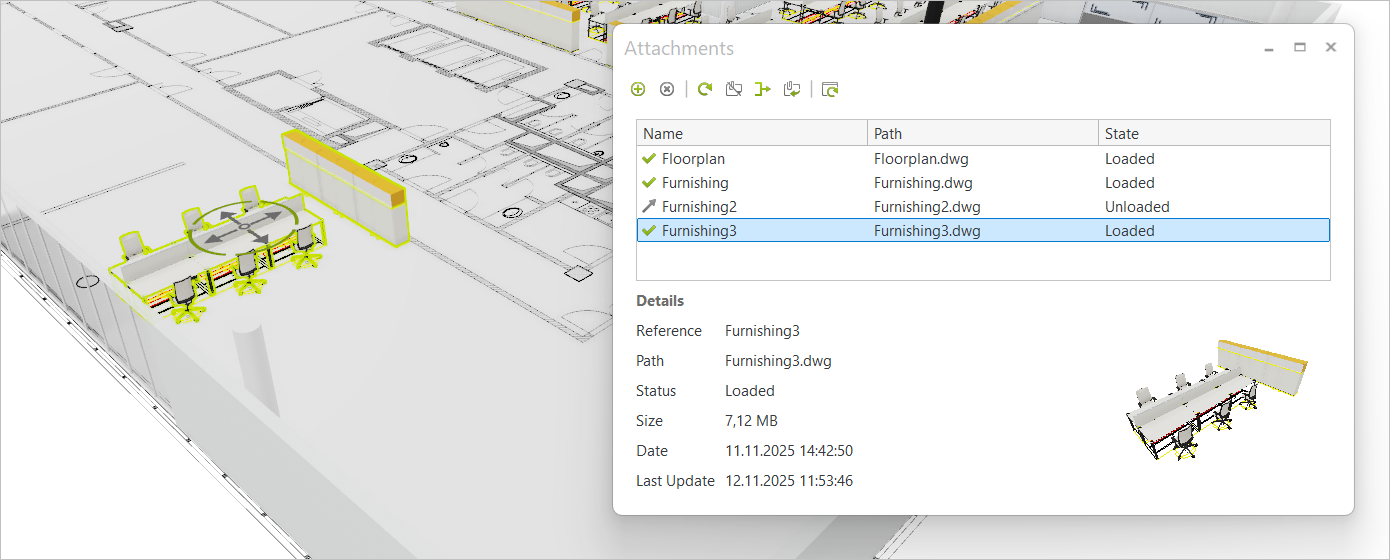
2.Click Bind (marked in the first image below).
3.The content of the attachment will now be displayed as a regular group in your drawing, while the reference is no longer part of the list in the dialog (see second image below).
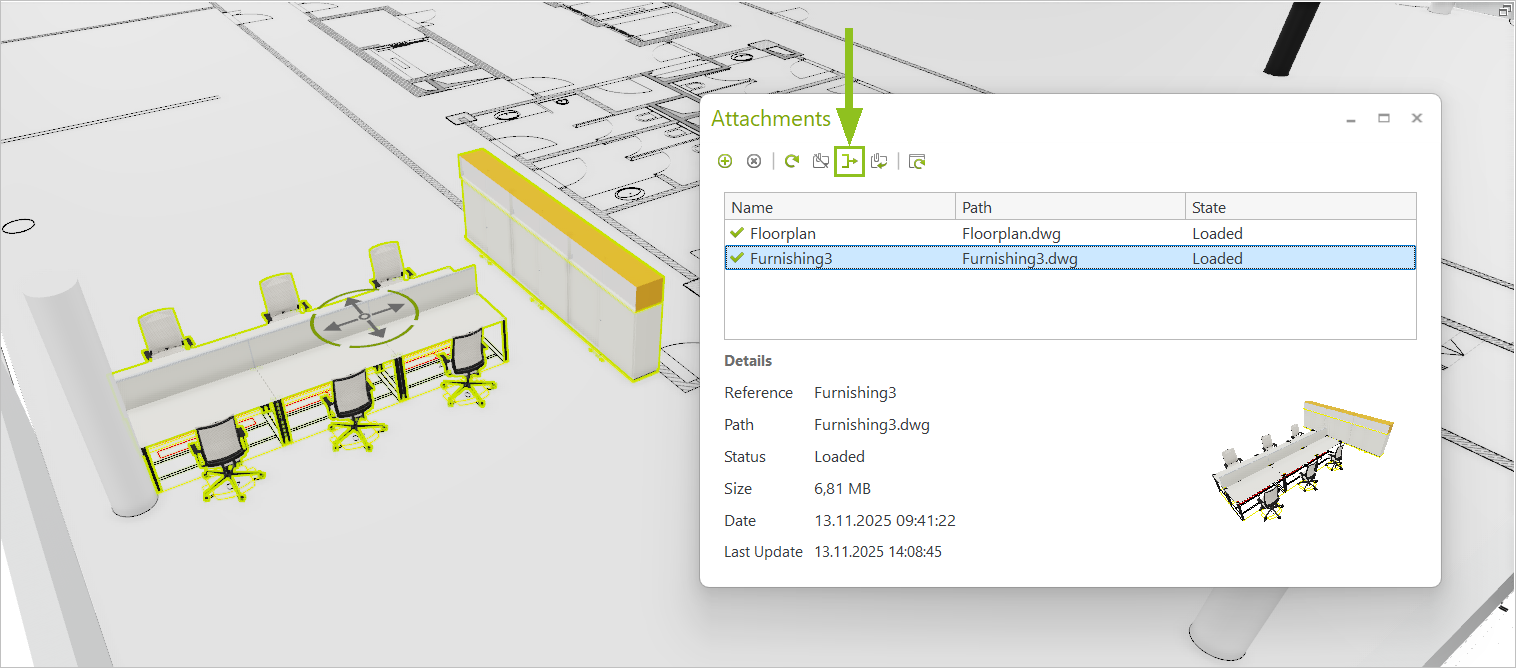
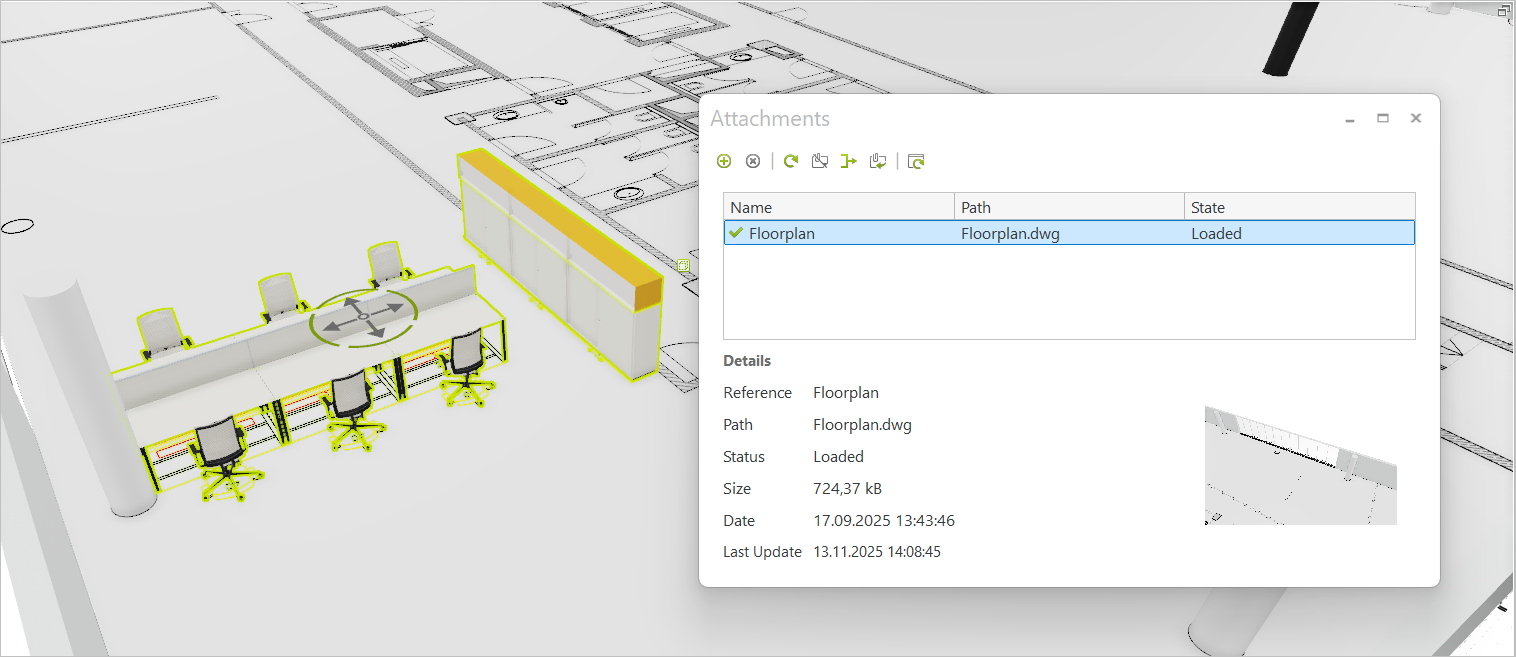
Layers of an attachment take the attachments name as a prefix. As with regular layers, layers of attachments can be used to control the visibility in a drawing. The settings made regarding visibility are preserved when an attachment is unloaded and loaded again.
If an attachment is deleted from the list in the Attachments dialog, all of its layers are automatically purged.
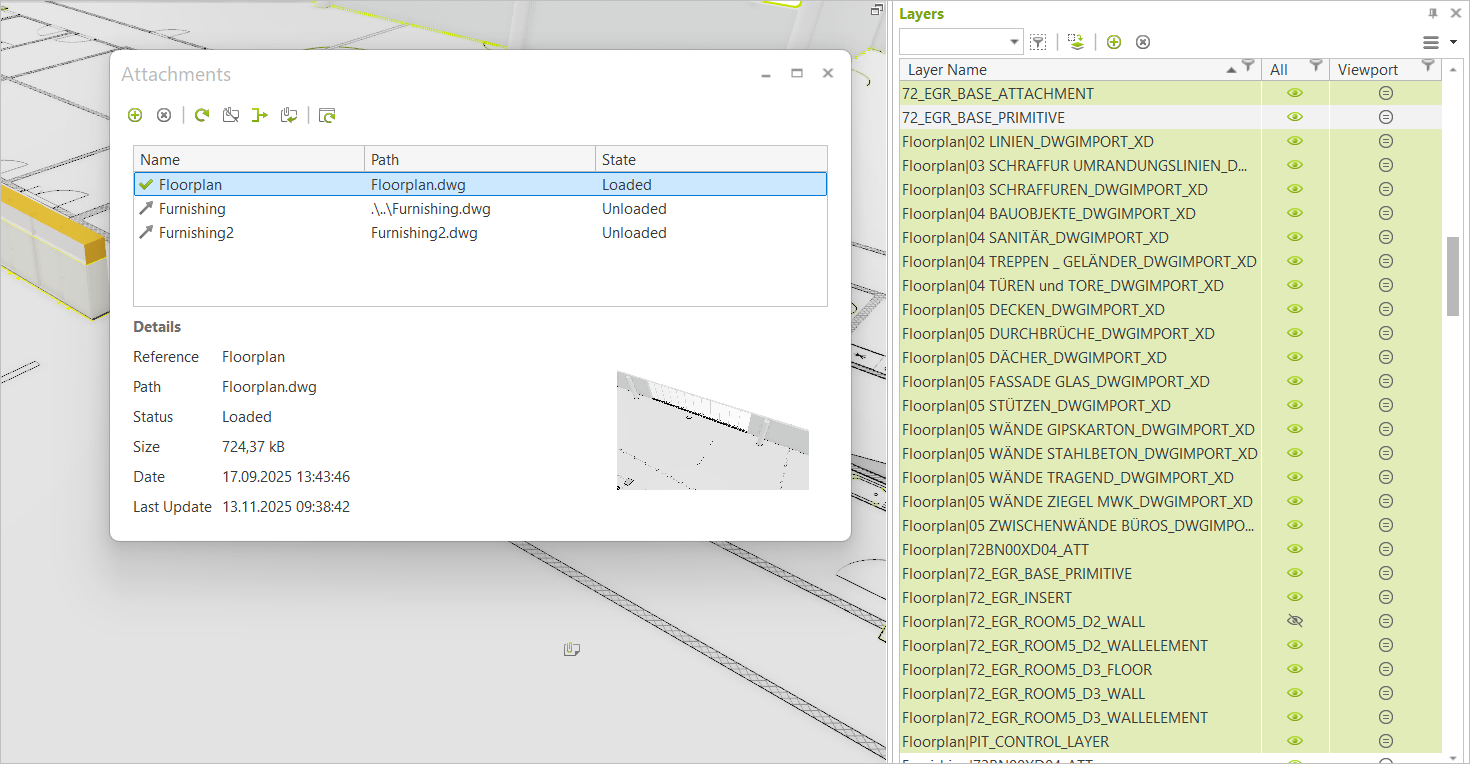
Materials from attachments are locked for editing in the Materials dialog, they cannot be unlocked and are hidden by default. They can be displayed via the filter in the Materials dialog.
If an attachment is deleted from the list in the Attachments dialog, all of its materials are automatically purged.
Articles in attachments are not updated when you update your main project.
In order to update the articles in attachments, please open them separately, update them there and save the file.
Do so by selecting the attachment in the Attachments dialog. Open the context menu with a click on your right mouse button. Click Edit. This opens the file in a separate instance of pCon.planner Pro where you can update your articles as usual.
After merging an attachment into your project using Bind, articles can also be updated.
The Article Explorer and the Article Selection tool do not recognize articles in attachments.
Articles in attachments are part of your Article List in your main project. During Article List generation, they are processed like regular articles (according to your individual configurations while creating the Article List).
Articles in attachments are also part of your exports.
Note: Please note that repeatedly referencing DWGs with the same content as an attachment in your project (for example to add a typical contained in this attachment multiple times) might result in export issues. This includes missing articles in the article list as well as incomplete commercial export files (like PEC). To avoid this behavior, please make sure to use only attachments containing different articles for one project. |
|---|
Sharing Projects with Attachments with Co-Workers
In case you want to share projects that include attachments, please make sure that you hand over all of the attachment DWG files together with the project DWG.